
The short answer
TargetWise provides waterfall contact enrichment, company enrichment and reverse email lookup through REST, MCP and a workspace dashboard. Contact lookups use 15+ specialist sources and return available work emails and business phones. Returned phones are unclassified unless the response says otherwise; a returned email is not a deliverability guarantee. See the contact enrichment API.
Until recently, using AI for contact enrichment meant copy-pasting between tabs: you'd ask Claude to draft an email, then leave the conversation, open your data tool, look up the prospect's email and phone, copy it back, and continue. The AI helped with the writing but couldn't touch your data.
The Model Context Protocol (MCP) changed that. It's an open standard that lets AI assistants connect directly to external tools and data sources. Connect an enrichment provider's MCP server to Claude, ChatGPT, or Cursor, and the AI can look up verified emails and mobile numbers inside the conversation — no tab switching, no copy-paste. You ask in plain English; the agent makes the call and returns the result.
This guide covers the mechanics that apply to any MCP-compatible enrichment tool, then walks through a concrete example. The setup pattern is nearly identical across providers — once you understand it for one, you understand it for all.
Last updated: May 2026. Steps reflect the current connector and MCP interfaces in Claude, ChatGPT, and Cursor as of May 2026; vendor UIs change, so confirm against each client's current settings.
What's in this guide
- What you need before you start
- How enrichment-over-MCP actually works
- How to enrich contacts in Claude
- How to enrich contacts in ChatGPT
- How to enrich contacts in Cursor
- Worked example: enriching with the Targetwise MCP
- Prompts that work (and ones that don't)
- Real MCP interactions, end to end
- Troubleshooting: when the tool won't connect
- Frequently asked questions
1. What you need before you start
Three things, regardless of which AI client or data provider you use:
- A supported AI client. Claude (Desktop, or a Pro/Max/Team/Enterprise plan for connectors), ChatGPT (Plus, Pro, Business, or Enterprise — MCP connectors aren't on the free tier), or Cursor (any plan that supports MCP).
- An enrichment provider with an MCP server. Several B2B data tools now expose one. You'll need an account and, in most cases, an API key from that provider's dashboard.
- The provider's MCP server URL and auth method. Usually a URL like
https://mcp.provider.com/mcpplus either an API key (bearer token) or an OAuth sign-in.
Two ways providers handle auth
Most MCP enrichment servers use one of two authentication methods. API key / bearer token: you paste a key from your account into the client's config. OAuth: you click "connect" and sign in through a browser window, no key to copy. OAuth is slightly easier for non-technical users; API keys give you more control and work everywhere. The steps below cover both.
2. How enrichment-over-MCP actually works
Worth understanding before you wire it up, because it explains what the AI can and can't do. MCP is a standard interface between an AI client and an external tool. When you connect an enrichment provider's MCP server, the provider exposes one or more "tools" — for example, an enrich_contact tool that takes a name and company and returns a verified email and mobile.
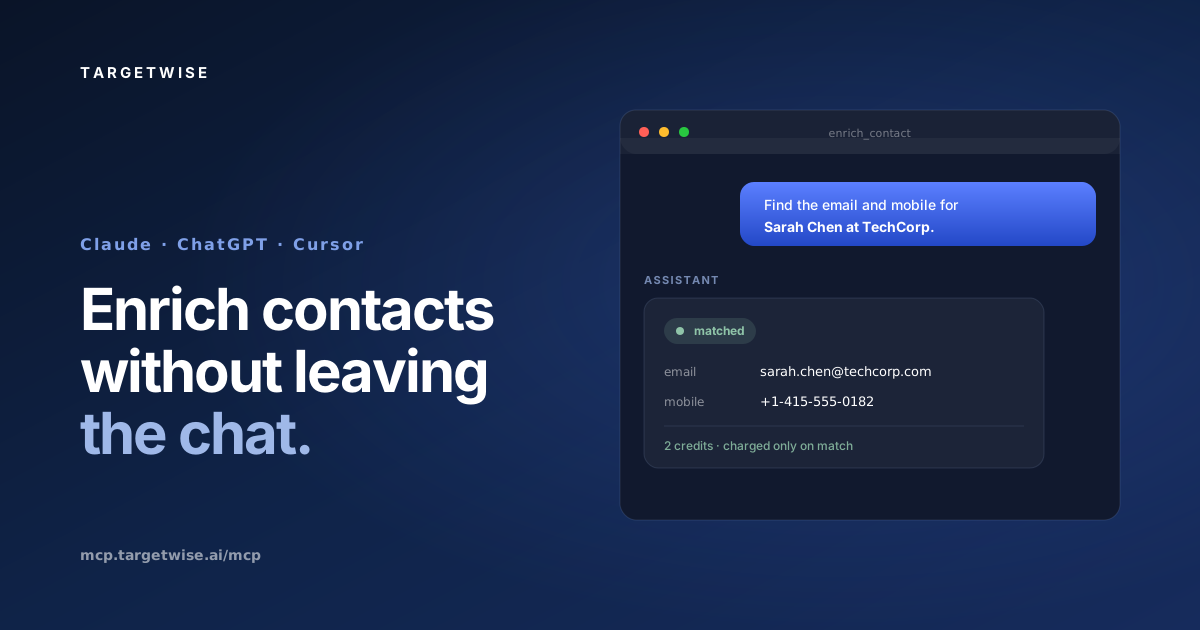
When you type "find the email for Sarah Chen at TechCorp," the AI recognizes that the request matches the enrichment tool, calls it with the right parameters, receives the structured result, and folds it into its reply. You never see the API mechanics — you see plain-English in, verified contact out.
This matters for two reasons. First, the AI handles the orchestration — you don't write code or format API calls. Second, the data quality is only as good as the provider behind the tool. MCP is the pipe; the provider is the water. Connecting a weak data source through MCP just gives you weak data faster. For the architecture behind why some MCP enrichment servers outperform others, see our companion piece on B2B email and mobile enrichment MCP servers.
3. How to enrich contacts in Claude
Claude supports MCP two ways: through the Connectors UI (easiest, no file editing) on Pro/Max/Team/Enterprise plans, or by editing the config file in Claude Desktop. Use whichever fits.
Option A — Connectors UI (no file editing)
- Open Settings → Connectors. In Claude, go to Settings, then the Connectors (or "Apps") section.
- Add a custom connector. Click "Add custom connector" and paste your provider's MCP server URL.
- Authenticate. Sign in via OAuth if the provider supports it, or paste your API key when prompted.
- Confirm and use. The enrichment tool appears in your tool list. Start a chat and ask Claude to enrich a contact.
Option B — Config file (Claude Desktop)
Edit claude_desktop_config.json (Settings → Developer → Edit Config). Add the server under mcpServers:
{
"mcpServers": {
"enrichment": {
"url": "https://mcp.provider.com/mcp",
"headers": {
"Authorization": "Bearer YOUR_API_KEY"
}
}
}
}
Save the file and restart Claude Desktop. The tool appears in the tool list, ready to use.
4. How to enrich contacts in ChatGPT
ChatGPT supports MCP through its Connectors feature, available on Plus, Pro, Business, and Enterprise plans (not the free tier). Some accounts access custom MCP servers via Developer mode under Advanced Settings.
- Open Settings → Connectors. Find the Connectors (or "Apps") section in ChatGPT's settings. If you don't see custom connectors, enable Developer mode under Settings → Apps → Advanced Settings.
- Add a custom connector. Choose "Add custom connector" (or create a new app), then enter your provider's MCP server URL.
- Authenticate. Complete OAuth sign-in, or enter your API key if the provider uses key-based auth.
- Enable it in chat. Turn the connector on for your conversation, then ask ChatGPT to enrich a contact in plain English.
Plan gotcha
MCP connectors are a paid-plan feature in ChatGPT. If you're on the free tier, you won't see the Connectors option — you'll need to upgrade, or use Claude or Cursor instead. This is the most common reason people get stuck on this step.
5. How to enrich contacts in Cursor
Cursor — the AI code editor — supports MCP for developers who want to enrich data while building. Useful if you're wiring enrichment into a product, testing a data source, or working with contact data in a script.
- Open MCP settings. In Cursor, go to Settings → MCP (or edit
~/.cursor/mcp.jsondirectly). - Add the server. Add a new entry under
mcpServerswith your provider's URL and auth header — the same JSON format Claude Desktop uses. - Reload. Cursor auto-discovers the tool on reload. It becomes available in chat and agent mode.
- Prompt in chat or agent mode. Ask Cursor to enrich a contact, or build it into a multi-step agent workflow.
{
"mcpServers": {
"enrichment": {
"url": "https://mcp.provider.com/mcp",
"headers": {
"Authorization": "Bearer YOUR_API_KEY"
}
}
}
}
Other MCP-compatible clients
The same pattern works for any client that implements MCP. Windsurf and VS Code (with the Copilot Chat or Continue extensions) read the same mcpServers JSON format — add the server URL and auth header, reload, done. Zed supports MCP through its context-server settings. Gemini and other assistants are adding MCP support on a rolling basis; check the client's connector or developer settings for a "custom MCP server" option. If a client speaks MCP, the setup is always the same three moves: add the URL, authenticate, restart.
MCP is the pipe. The provider is the data.
Core is $49/month, with $0.15 per returned work email and $0.25 per returned business phone deducted from that included balance; Growth is $149/month, with $0.12 per returned work email and $0.20 per returned business phone deducted from that included balance; Scale is $399/month, with $0.09 per returned work email and $0.16 per returned business phone deducted from that included balance. Free includes 20 emails and 5 business phones. Unused balance resets at renewal. Subscriptions renew monthly until cancelled; unresolved requested fields consume no usage balance. See current pricing and subscription terms.
See how it works View pricing →6. Worked example: enriching with the Targetwise MCP
Here's the full flow end to end, using Targetwise as the example provider. The same pattern applies to any MCP enrichment tool — swap the URL and key for whichever you use.
- Get your MCP key. Contact the Targetwise team to request access. They'll provide a test key that includes 50 free contact enrichments, so you can wire up the connection and validate the data against your own list before committing to anything.
- Add the MCP server. Use the URL
https://mcp.targetwise.ai/mcpwith a bearer-tokenAuthorizationheader — in Claude's Connectors UI, Claude Desktop's config, or Cursor'smcp.json. - Restart or reload the client. The
enrich_contacttool appears in your tool list. - Prompt in plain English. Ask the AI to find an email and mobile for a named contact, or to enrich a list.
Getting your free test key
TargetWise provides waterfall contact enrichment, company enrichment and reverse email lookup through REST, MCP and a workspace dashboard. Contact lookups use 15+ specialist sources and return available work emails and business phones. Returned phones are unclassified unless the response says otherwise; a returned email is not a deliverability guarantee. See the contact enrichment API.
A typical exchange the agent handles natively:
"Find the verified email and mobile for Sarah Chen at TechCorp."
// The agent calls enrich_contact and returns:
{
"status": "matched",
"email": "sarah.chen@techcorp.com",
"mobile": "+1-415-555-0182",
"credits_charged": 2
}
For this workflow, use the current TargetWise plan rates and usage calculator. Paid plans renew monthly; unused balance resets at renewal.
7. Prompts that work (and ones that don't)
The quality of what you get out depends heavily on how you ask. The AI needs enough identifying information to match a contact, and a clear action.
| Works well | Why |
|---|---|
| "Find the email and mobile for Sarah Chen at TechCorp." | Name + company gives a strong match signal. |
| "Enrich this LinkedIn URL: linkedin.com/in/sarah-chen-techcorp" | A LinkedIn URL is a high-confidence identifier. |
| "For each of these 10 prospects, get a verified email — skip any with no match." | Clear batch action with a rule for misses. |
| "Enrich these names, then draft a one-line intro email for each." | Chains enrichment with a downstream task. |
| Works poorly | Why |
|---|---|
| "Find Sarah's email." | No company or identifier — too many Sarahs to match. |
| "Get me everyone at TechCorp." | That's prospecting/search, not enrichment — different tool. |
| "Is this email still valid?" (with no provider that verifies) | Depends on whether your connected tool does verification. |
What separates a weak prompt from a strong one is identifier strength. The more the AI has to match against, the higher the match rate. Here's roughly how confidence rises with each identifier you add:
8. Real MCP interactions, end to end
Prompts in a table are abstract. Here's what the actual back-and-forth looks like in practice — four common workflows, from a single lookup to a multi-step agent task. (Examples use the Targetwise enrich_contact tool; the pattern is the same for any enrichment MCP.)
Example 1 — Single lookup
The simplest case. You give a name and company; the agent calls the tool once and returns the verified result.
Email: marcus.webb@datafold.com
Mobile: +1-628-555-0114
2 credits charged · billed only on match
Example 2 — Batch with a skip rule
Paste a list and set a rule for misses. The agent loops through each record, calling the tool per contact, and reports a clean summary.
1. Priya Nair, Stripe
2. Tom Alvarez, Ramp
3. Lena Fischer, Pennylane
4. David Okoro, Paystack
5. Yuki Tanaka, SmartHR
✓ Priya Nair — priya.nair@stripe.com · +1-415-555-0190
✓ Tom Alvarez — tom@ramp.com · +1-212-555-0177
✓ Lena Fischer — l.fischer@pennylane.com · +33-6-12-34-56-78
✓ Yuki Tanaka — y.tanaka@smarthr.jp · +81-90-1234-5678
✗ David Okoro — no verified match found (not charged)
8 credits charged for 4 matches · the miss cost nothing
Example 3 — Enrich, then act
Where the in-chat model earns its keep: chaining enrichment to a downstream task in one turn, so you never leave the conversation.
Draft:
"Hi Aisha — congrats on the Series B; scaling growth through that stage is its own kind of hard. I'd love to share how teams like yours keep CRM data clean while moving fast. Worth 15 minutes?"
Example 4 — Multi-turn refinement
Because the AI keeps context, you can refine without starting over. Each follow-up builds on the last result.
• Marcus Webb — +1-628-555-0114
• Carlos Mendes — +1-415-555-0143
One habit that saves credits
Tell the agent your miss rule up front — "skip anything with no match" or "only charge me for verified results." With a pay-per-match provider this is automatic (misses are free), but on per-call or credit providers it stops the agent from burning budget retrying contacts that can't be found. The instruction costs you nothing and changes how the agent spends.
9. Troubleshooting: when the tool won't connect
Most setup failures come down to five causes. Work through them in order — the first two fix the large majority of cases.
| Symptom | Likely cause & fix |
|---|---|
| Tool doesn't appear after adding it | You didn't restart the client. Claude Desktop and Cursor only load new MCP servers on restart — fully quit and reopen, don't just close the window. |
| "Unauthorized" or auth error | Wrong or expired API key, or a malformed Authorization header. Re-copy the key from your provider's dashboard and confirm the format is Bearer YOUR_KEY with a space after "Bearer." |
| No Connectors option at all (ChatGPT) | You're on the free tier. MCP connectors require a paid plan (Plus, Pro, Business, or Enterprise). Upgrade, or use Claude or Cursor instead. |
| Client won't start / config ignored | JSON syntax error in the config file — usually a missing comma, quote, or brace. Paste your config into a JSON validator, fix the error, and restart. |
| Tool connects but returns nothing | The credentials work but the request lacks a strong identifier, or the contact genuinely isn't matchable. Add a company name or LinkedIn URL to the prompt. To rule out a connection problem, test the same key against the provider's REST API. |
Confirm the connection worked
Before relying on it, verify the tool is live: ask the AI to "list your available tools" or "what tools can you use?" The enrichment tool should appear by name in the response. If it doesn't, the server isn't connected — recheck the steps above. If it does, run one test enrichment on a contact you can verify by hand.
Connect once. Enrich in plain English. Pay only on match.
For this workflow, use the current TargetWise plan rates and usage calculator. Paid plans renew monthly; unused balance resets at renewal.
Get a free test key See pricing →Frequently asked questions
Can I enrich contacts directly inside Claude?
Yes. Connect an enrichment provider's MCP server to Claude through the Connectors UI (on Pro, Max, Team, or Enterprise plans) or by editing the config file in Claude Desktop. Once connected, you ask in plain English — "find the email and mobile for Sarah Chen at TechCorp" — and Claude calls the enrichment tool and returns the verified result inside the conversation. Setup takes about five minutes: add the server URL, authenticate with an API key or OAuth, and start prompting.
How do I get a Targetwise MCP key?
For this workflow, use the current TargetWise plan rates and usage calculator. Paid plans renew monthly; unused balance resets at renewal.
Does ChatGPT support contact enrichment via MCP?
Yes, on paid plans. ChatGPT supports MCP connectors on Plus, Pro, Business, and Enterprise plans — not the free tier. Add your enrichment provider's MCP server under Settings → Connectors (you may need to enable Developer mode under Advanced Settings for custom servers), authenticate, and enable it in your chat. You can then enrich contacts conversationally. The most common reason people can't find the option is being on the free tier, which doesn't include connectors.
How do I add an MCP server to Cursor for enrichment?
In Cursor, open Settings → MCP, or edit ~/.cursor/mcp.json directly. Add an entry under mcpServers with the provider's URL and an Authorization header containing your API key — the same JSON format Claude Desktop uses. Reload Cursor and the enrichment tool becomes available in both chat and agent mode. Cursor is especially useful for developers wiring enrichment into a product or running it inside scripts while coding.
What's the difference between enrichment and prospecting in an AI client?
Enrichment fills in contact details for people you can already identify — you give a name and company (or LinkedIn URL) and get back a verified email and mobile. Prospecting finds new people matching a description ("VPs of Sales at Series B companies in the US"). These are different jobs handled by different tools. An enrichment MCP won't build a prospect list from scratch, and a search/prospecting MCP isn't optimized for verifying contact details. Many teams connect both and let the AI use each for its job.
Do I need to be a developer to set this up?
No. The Connectors UI in Claude and ChatGPT lets non-technical users add an MCP server with just a URL and a sign-in — no code or file editing. The config-file method (editing JSON in Claude Desktop or Cursor) is slightly more technical but still just copy-paste. Once connected, enrichment happens entirely in plain English. Developers get extra options — calling the same data via REST API or building it into agent frameworks — but they're not required for basic use.
How much does it cost to enrich contacts through an AI client?
The MCP connection itself is free — you pay your data provider for the enrichment, at whatever their pricing model is. Some charge per call (you pay whether or not a match is found), some use credits, and some use pay-per-match (you're only charged when a verified result comes back). For AI-client workflows specifically, pay-per-match tends to be most economical, because agents retry and explore in ways that rack up cost on per-call billing. You'll also need a qualifying AI-client plan: Claude Pro/Max/Team/Enterprise, ChatGPT Plus or above, or any MCP-capable Cursor plan.
Is enriching contacts inside an AI client secure?
The security depends on the connection method and provider. MCP servers authenticate via API key (bearer token) or OAuth; OAuth avoids storing a raw key in a config file. Your API key grants access to your enrichment account, so treat it like a password — don't share config files containing it. Reputable providers transmit data over HTTPS and don't expose your key to the AI model itself; the client handles auth separately from the conversation. For sensitive workflows, check your provider's data-processing terms and whether they offer a DPA.
Why isn't my enrichment tool showing up after I added it?
The usual causes: you didn't restart or reload the client after adding the server (Claude Desktop and Cursor need a restart); the API key is wrong or expired; you're on a plan that doesn't support connectors (ChatGPT free tier is the common one); or the config JSON has a syntax error like a missing comma or quote. Re-check the server URL and auth header, confirm your plan supports MCP, and restart the client. If it still fails, test the same API key against the provider's REST API to confirm the credentials work.
Can the AI enrich a whole list of contacts at once?
Yes, within limits. You can paste a list of names and companies (or LinkedIn URLs) and ask the AI to enrich each one — "for each of these prospects, get a verified email and mobile." The AI loops through them, calling the enrichment tool per record. For small batches (tens of contacts) this works conversationally. For large batches (thousands), a bulk upload or direct API call is faster and cheaper than asking the AI to iterate, because you avoid the per-message overhead of the chat interface. Use the conversation for ad-hoc enrichment, the API or bulk upload for volume.
Which AI client is best for contact enrichment?
It depends on your workflow. Claude and ChatGPT suit sales and marketing users doing conversational, ad-hoc enrichment — researching a prospect, enriching a short list, drafting outreach in the same thread. Cursor suits developers wiring enrichment into a product or running it in scripts. The underlying data and the enrichment tool are the same across all three via MCP; the client is just the interface. Pick the one your team already works in. If you split between sales and engineering, you can connect the same provider to multiple clients.